Uploading Sessions for Analysis
A sailing session can be uploaded either from a browser at sailingmetrics.com or from the SailingMetrics app. Both paths feed the same processing pipeline and end up on the same Analysis View once complete.
Supported file formats
- GPS track files — GPX, FIT, KML, VKX (Vakaros), and GLV.
- SailingMetrics app export — JSON.
- Video — MP4 or MOV, optionally paired with one of the track files above.
A video file on its own can't be turned into an activity — the worker needs a GPS track (or a SailingMetrics app JSON export) alongside it to build the track your video gets synced to.
Uploading from sailingmetrics.com
Use the Upload button on your My Uploads page, or go directly to the upload page. From there:
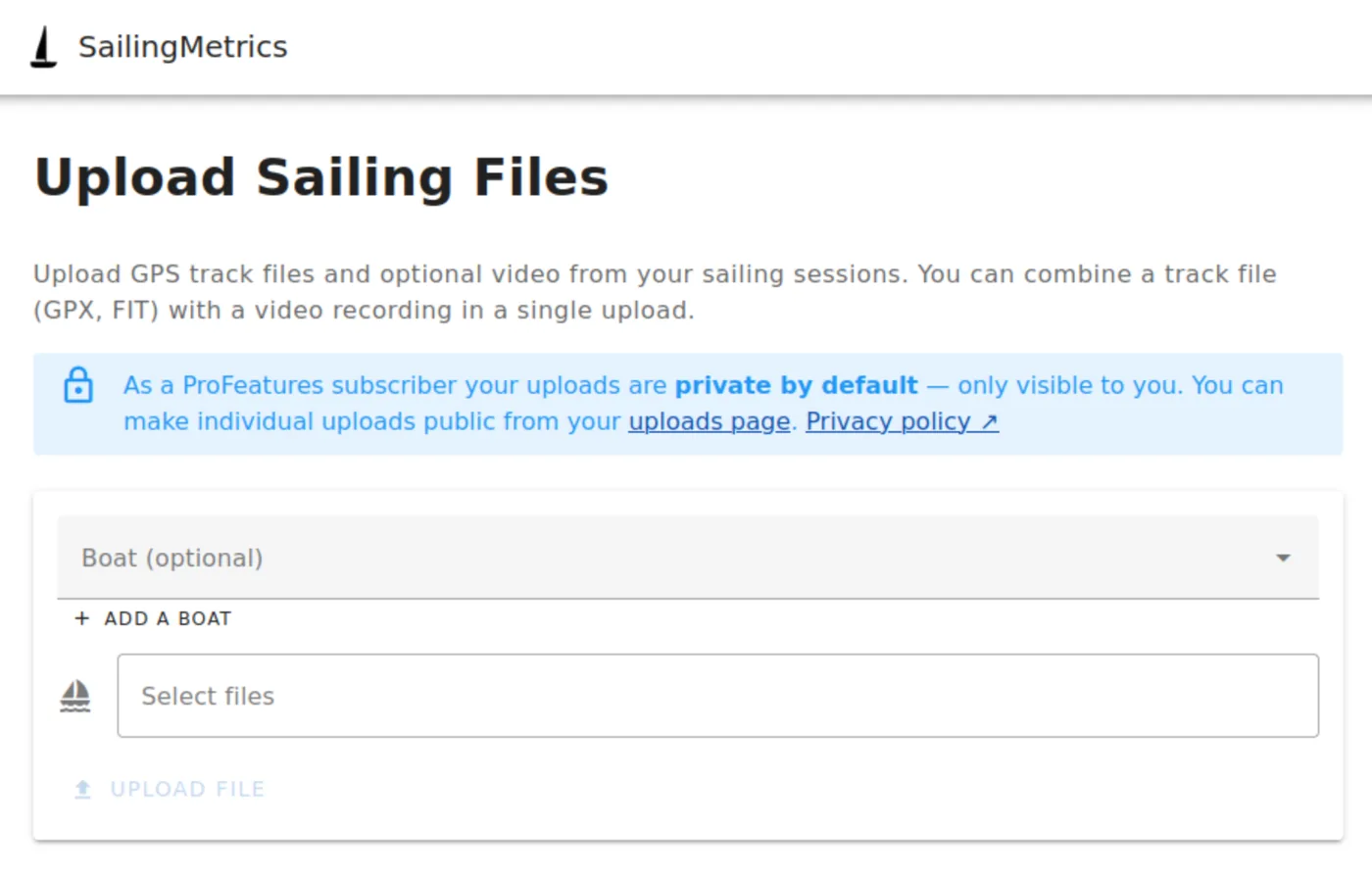
- Optionally pick a boat — you can also set or change it later from the session's analysis page.
- Select files — choose one or more files at once. To sync a video, select its track file and video file together in the same upload.
- Click Upload. A progress bar tracks each file individually, and the upload can be aborted while it's in flight.
Once the files finish transferring, you're taken back to My Uploads with the new upload highlighted. Free accounts have uploads public by default; Pro accounts default to private and can make individual uploads public afterward from the same page.
Pro accounts also have an AI Sailing Coach upload path (Account → Uploads → AI Coach) — a chat interface where you can drop in your files and ask questions about the session as it's analysed, instead of using the plain upload form.
Uploading from the app
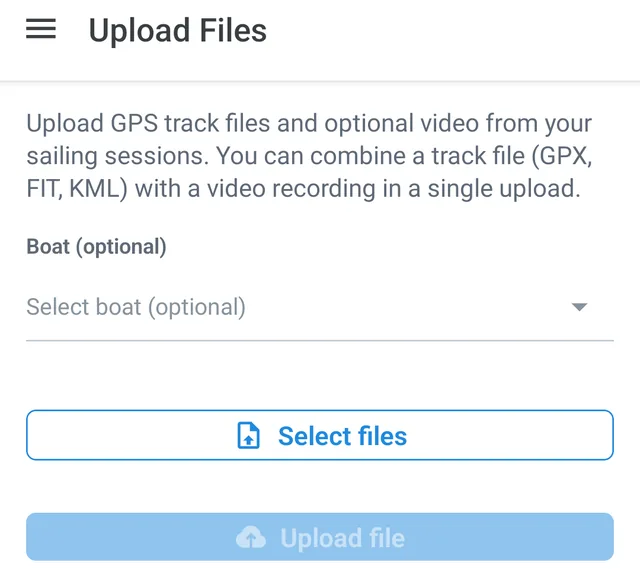
There are two routes in the app, depending on where the recording came from:
- Sessions recorded with the app — open the session from the Recordings list and tap "Upload to your account for analysis". Boat and wind are pre-filled if they were already set (for example during a Training Mode session); adjust and confirm to send it. See Tracking with the App for how sessions get recorded in the first place.
- Files recorded elsewhere — choose "Upload existing file" from the tracking screen to pick a GPX or FIT file (from a GPS watch or another app) and, optionally, a matching video.
If a video upload gets interrupted or is skipped, it reappears under "Pending video uploads" at the top of the Recordings list so you can retry just the video without re-uploading the track.
Once a session you uploaded from the app finishes processing, its headline stats — scoring speed, VMG upwind/downwind, and tack count — appear right there on the recording, with a button to open the full Analysis View on sailingmetrics.com.
What happens after upload
Every upload moves through a short pipeline: uploading, awaiting processing, processing, then complete (or failed, if something went wrong — the status includes a reason). You can watch this on the My Uploads page at any time; it updates automatically while processing is in progress. Once processing completes, one or more activities are created from the upload — most uploads produce a single activity, but a track containing multiple distinct sailing sessions (for example several races back to back) is automatically split into more than one. Each activity gets its own Analysis View, linked from My Uploads. If the automatic split doesn't match how you actually sailed, you can trim or re-split the sessions afterward from the "Edit sessions" option on the upload.